 CastCut
 › Multicam podcast in Final Cut Pro
How to edit a multicam podcast in Final Cut Pro
Two or three cameras, a recorder, and an hour of conversation. Here is the full manual workflow in Final Cut Pro, where the time goes, and a faster way that does the switching before Final Cut opens.
Try 2 exports free See pricing
Apple silicon Mac (M1 or newer), macOS 14+. No account or card. Trial MP4 exports carry a small getcastcut.com mark.
Quick version
Select your clips and choose File > New > Multicam Clip with Use audio for synchronization. Add the multicam clip to a project, open the angle viewer (Shift-Command-7) and press number keys to cut between people as you play. Then blade out the long pauses. Or let CastCut sync, switch and clean up, and open the finished timeline in Final Cut.
Before you start: record so sync is easy
- Every camera records its own sound, even a scratch track. Audio sync needs it.
- Start every camera and recorder before the first word.
- One mic per person makes the edit easier, whether you cut by hand or not.
- A few seconds of quiet at the start helps you spot problems early.
Method 1: by hand in Final Cut Pro
- Import everything into one event. Bring in every camera file and the recorder or mic audio. Rename the camera clips (Maya cam, Jordan cam, Wide) so the angles are easy to tell apart later.
- Create the multicam clip. Select all the clips in the browser and choose File > New > Multicam Clip, or Control-click and choose New Multicam Clip. Leave Use audio for synchronization selected so Final Cut lines the angles up by their waveforms. On long files this can take a while.
- Check the sync. Double-click the multicam clip to open the angle editor and scrub to a few spots. If an angle is off, drag it into place.
- Put it in a project and pick the audio. Add the multicam clip to a new project. Control-click it, choose Active Audio Angle, and pick your recorder so the best sound plays under every shot.
- Switch angles as you play. Open the angle viewer with View > Show in Viewer > Angles (Shift-Command-7) and set it to switch video only. Play the episode and press the number key of whoever is talking: 1, 2, 3. Each press cuts and switches.
- Fix the timing. Play it back. Roll edit points where a cut lands late, and change any shot with Control-click > Active Video Angle.
- Cut the long pauses and ums. Final Cut Pro does not remove silences for you, so this is Blade work: press B, cut either side of each pause, delete it, and close the gap.
- Make the shorts. Duplicate the project, change it to vertical, and reframe each clip by hand.
Where the time goes: steps 5 to 7 happen in real time or slower. For a one-hour episode you watch the full hour at least once to switch angles, then again to clean up. That is the part most podcasters dread.
Method 2: let CastCut do the switching
CastCut does steps 1 to 7 before Final Cut Pro opens, so your time goes to the edit itself.
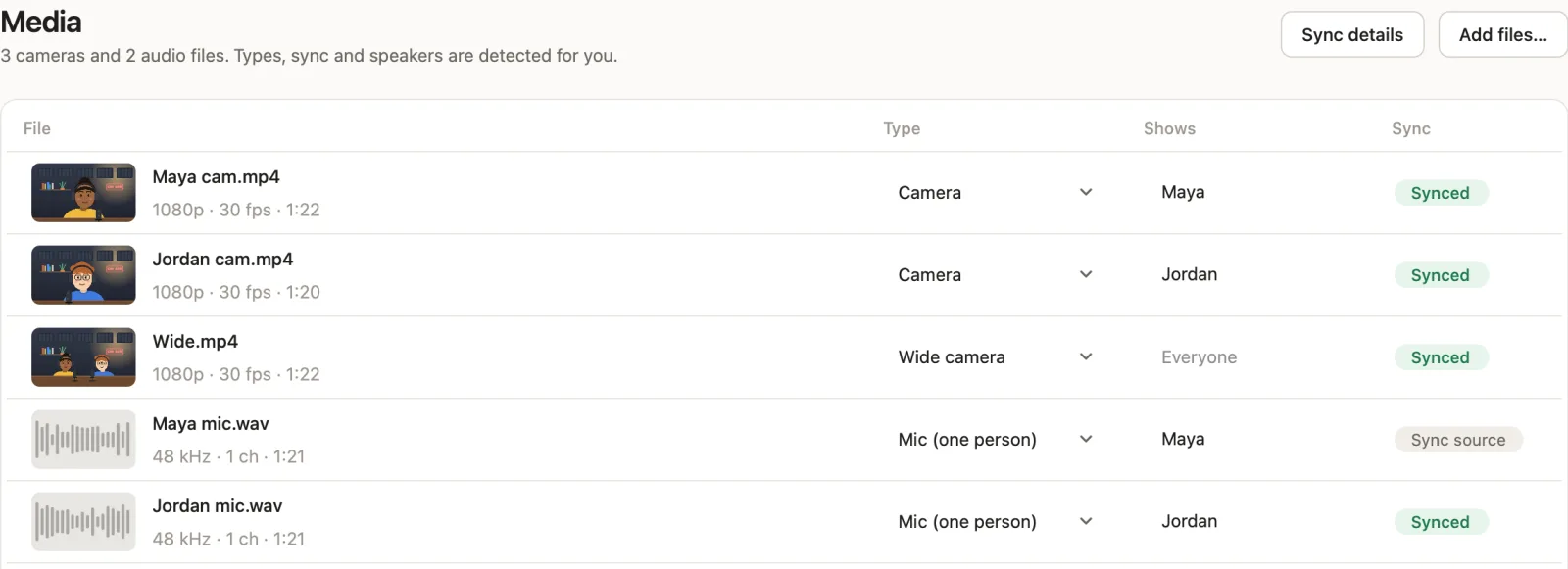
- Add the files to CastCut. The same camera files and audio, straight off the cards. CastCut sorts them and syncs them by sound.
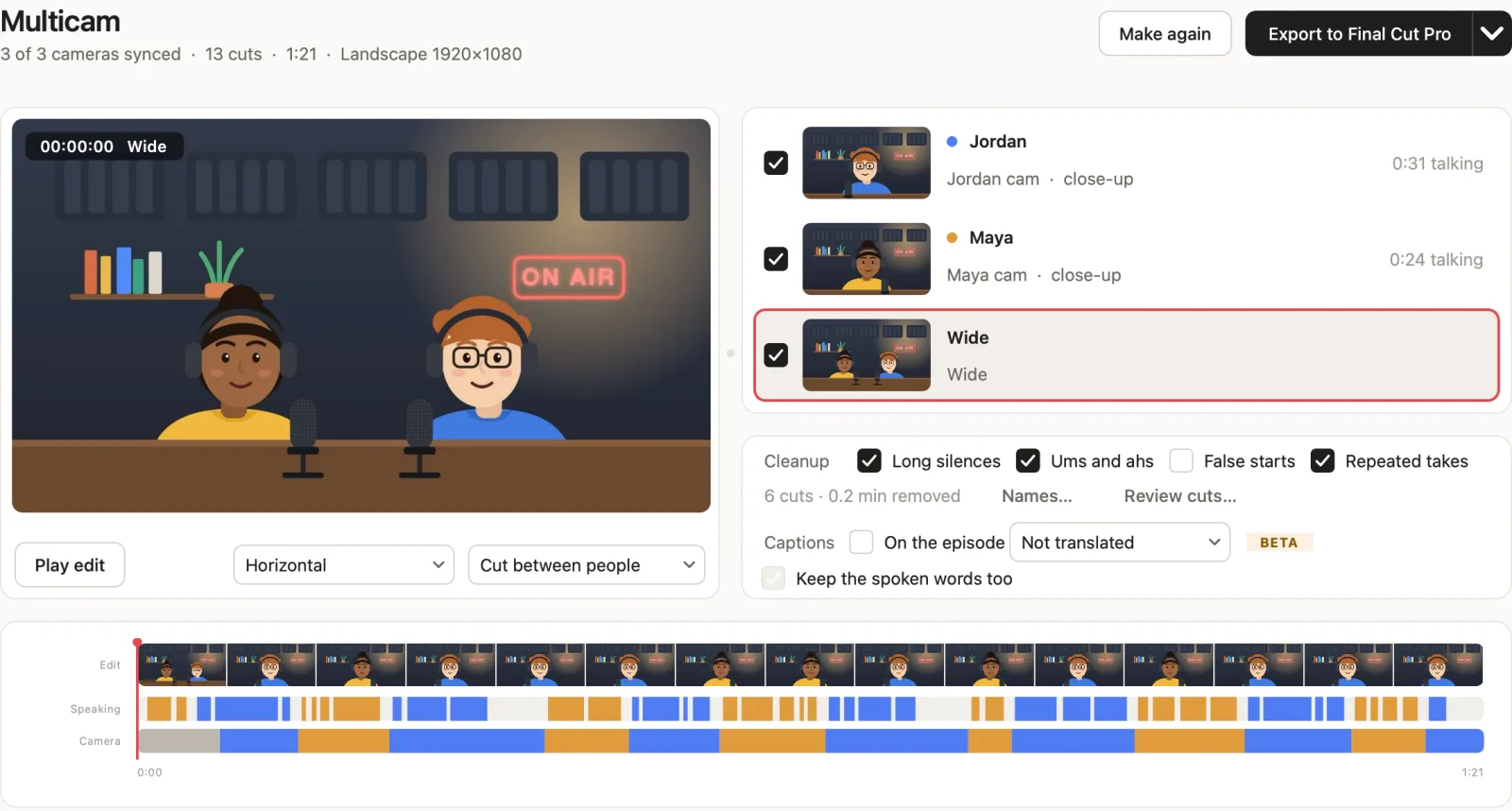
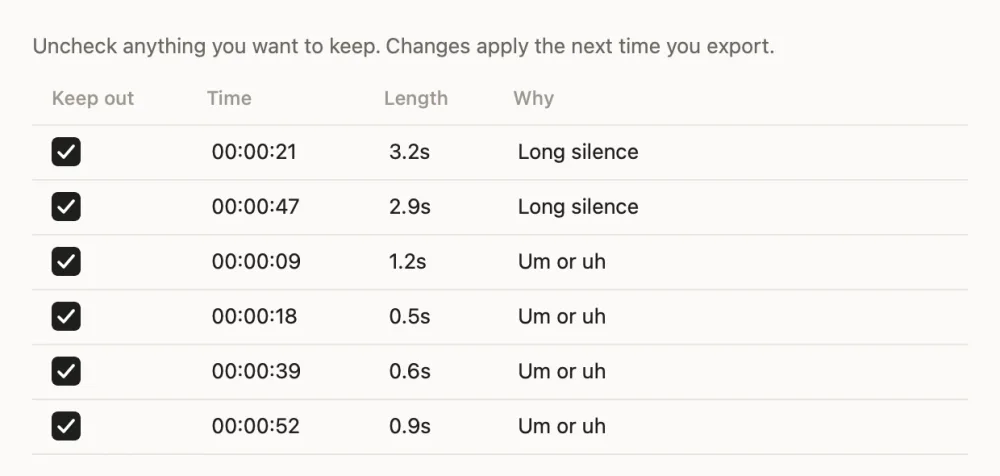
- Press Make multicam edit. It switches to whoever is talking, goes wide for crosstalk and lists every cut with the reason.
- Review the cleanup. Tick long silences and ums and ahs, then check the list. Untick anything you want to keep.
- Export to Final Cut Pro. Final Cut opens with the switching, sync and cleanup done. You start at step 6 above.
Tips for a better multicam podcast edit
- Cut at the start of a sentence, not mid-word. Viewers follow the voice, then the face.
- Go wide for laughs and crosstalk. When two people talk at once, the wide shot shows both.
- Hold shots for a couple of seconds. Very fast cuts feel nervous in a long conversation.
- Keep some reactions. A nod from the listener is often worth a cut away.
Next: why audio sync fails and how to fix it, and how to remove silences and filler words.
Questions
Can Final Cut Pro sync cameras automatically?
Yes. When you create a multicam clip, Use audio for synchronization lines the angles up by their waveforms. It works best when every camera recorded clear sound.
How do I switch angles with the keyboard in Final Cut Pro?
Open the angle viewer with Shift-Command-7, then press the number keys to cut and switch to that angle of the current bank while the episode plays.
Does Final Cut Pro remove silences automatically?
No. Without another tool you cut each pause with the Blade tool. CastCut finds long silences and ums for you and lists them before it cuts.
How many cameras can a Final Cut Pro multicam clip have?
Up to 64 angles, according to Apple. Most podcasts use two to four.
Can I keep my recorder audio while switching cameras?
Yes. Set the multicam clip’s active audio angle to the recorder, and switch video only in the angle viewer.
Try it on your next episode
Your first 2 exports are free. No account or card. Apple silicon Macs, macOS 14 or later.