 CastCut
 › Sync cameras by audio
How to sync podcast cameras by audio
No timecode, no clapper? Every camera's own microphone is enough to line them up. Here is how to sync by audio in Final Cut Pro, Premiere Pro and DaVinci Resolve, and what to do when it fails.
Try 2 exports free See pricing
Apple silicon Mac (M1 or newer), macOS 14+. No account or card. Trial MP4 exports carry a small getcastcut.com mark.
Quick version
Every camera hears the same conversation, so software can line the files up by comparing their sound waves. Make sure each camera records audio, then use your editor's multicam or synchronize command with audio as the sync method. If it drifts or fails, the fixes are below.
Why audio sync works
Your cameras and recorder all heard the same words at the same moment. Each file's audio has the same peaks and gaps, just shifted in time. Sync finds that shift for each file and slides them into line. No timecode or slate needed, as long as every file has usable sound.
Record for an easy sync
- Turn on every camera's built-in mic, even if you will never use its sound.
- Start all devices before anyone speaks, and keep them rolling until the end.
- Avoid cameras that split long recordings into many files, or keep every piece.
- Clap once on camera at the start. It is a free backup if the audio sync struggles.
How to sync by audio in each editor
- Final Cut Pro. Select the clips and choose File > New > Multicam Clip with Use audio for synchronization. For one camera and a recorder, select both and choose Clip > Synchronize Clips.
- Premiere Pro. Select the clips in the Project panel, right-click and choose Create Multi-Camera Source Sequence, and set the synchronize point to Audio. For one camera and a recorder, select both in the timeline, right-click and choose Synchronize, then Audio.
- DaVinci Resolve. Select the clips in the Media Pool, right-click and choose Create New Multicam Clip Using Selected Clips, with Angle Sync set to Sound. For one camera and a recorder, right-click and choose Auto Sync Audio, Based on Waveform.
Menu names change between versions, so if one is missing, search your editor's help for "multicam" and "sync by audio".
When audio sync fails, and how to fix it
- It drifts out of sync over an hour. Cameras and recorders keep slightly different time, so a file that starts in sync can be a few frames off by the end. Fix it by retiming the audio a tiny amount, or with a tool that corrects drift.
- One camera will not sync. Its audio is too quiet, muffled or missing. Boost it, or line it up by hand on the clap.
- A camera stopped and restarted. Each piece needs its own sync. Group the pieces by camera before syncing.
- The recorder started much earlier. That is fine. Long offsets sync like short ones; it only takes longer.
The automatic way: CastCut
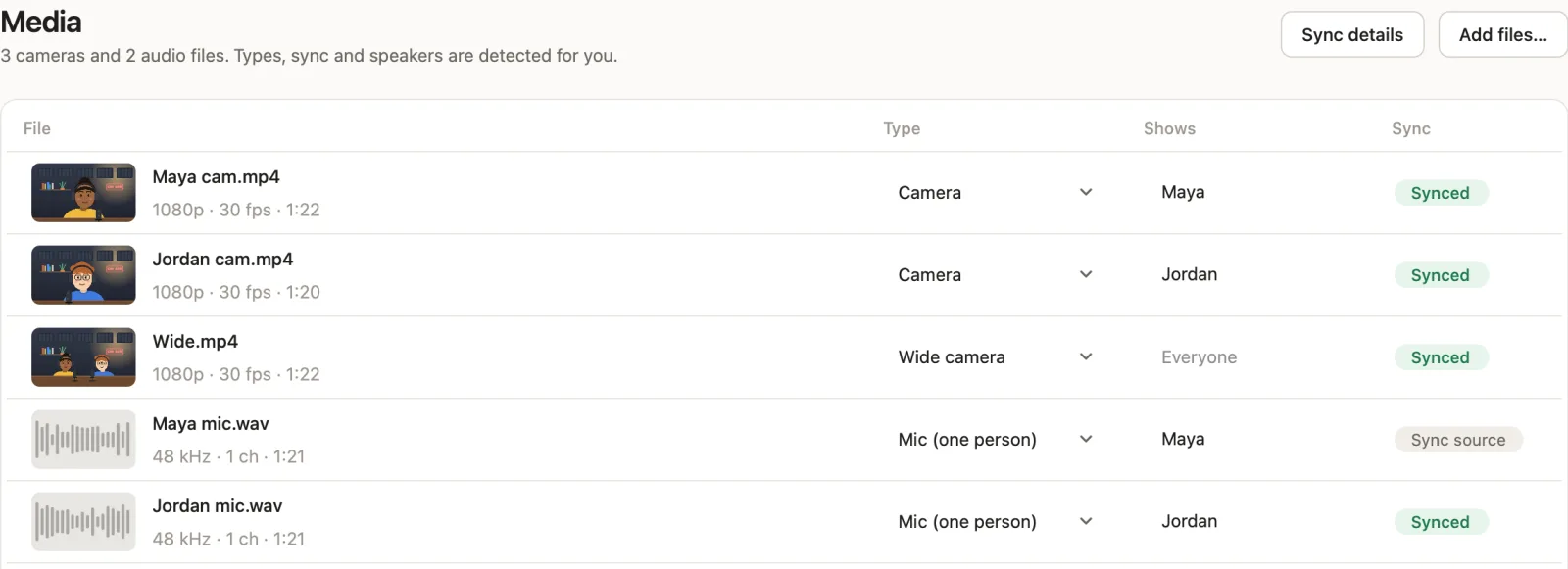
CastCut syncs every camera and audio file by sound as soon as you add them, corrects drift over long episodes, and marks each file Synced with its offset. Then it cuts the episode and exports it, already in sync, to Final Cut Pro, Premiere Pro or DaVinci Resolve.
Questions
Do I need a clapper to sync cameras?
No. Audio sync uses the sound every camera records. A clap is a useful backup when one camera has poor audio.
Why does my podcast drift out of sync?
Each device keeps slightly different time, so over a long episode the files slowly drift apart. Retime the audio slightly, or use a tool that corrects drift, like CastCut.
Can I sync a camera that recorded no audio?
Not by audio. Use timecode, or line it up by eye on a clap or another clear moment.
Can I sync phone footage with a separate recorder?
Yes. Phones record their own sound, so they sync by audio like any camera. See the iPhone podcast guide.
Does CastCut need timecode?
No. It syncs by sound, and corrects drift over long episodes.
Try it on your next episode
Your first 2 exports are free. No account or card. Apple silicon Macs, macOS 14 or later.