 CastCut
 › How to edit a video podcast
How to edit a video podcast
Several cameras, a recorder and an hour of conversation, turned into an episode and a handful of clips. Here is every step, by hand in any editor, what each one costs you in time, and the faster way.
Try 2 exports free See pricing
Apple silicon Mac (M1 or newer), macOS 14+. No account or card. Trial MP4 exports carry a small getcastcut.com mark.
Quick version
Sync every camera and mic by sound, put the best audio under every shot, cut to whoever is talking, remove the long pauses and ums, add titles and captions, then export the episode and a few vertical clips. Steps 2, 4 and 5 take most of the time, and CastCut does those three for you on your Mac.
What you need
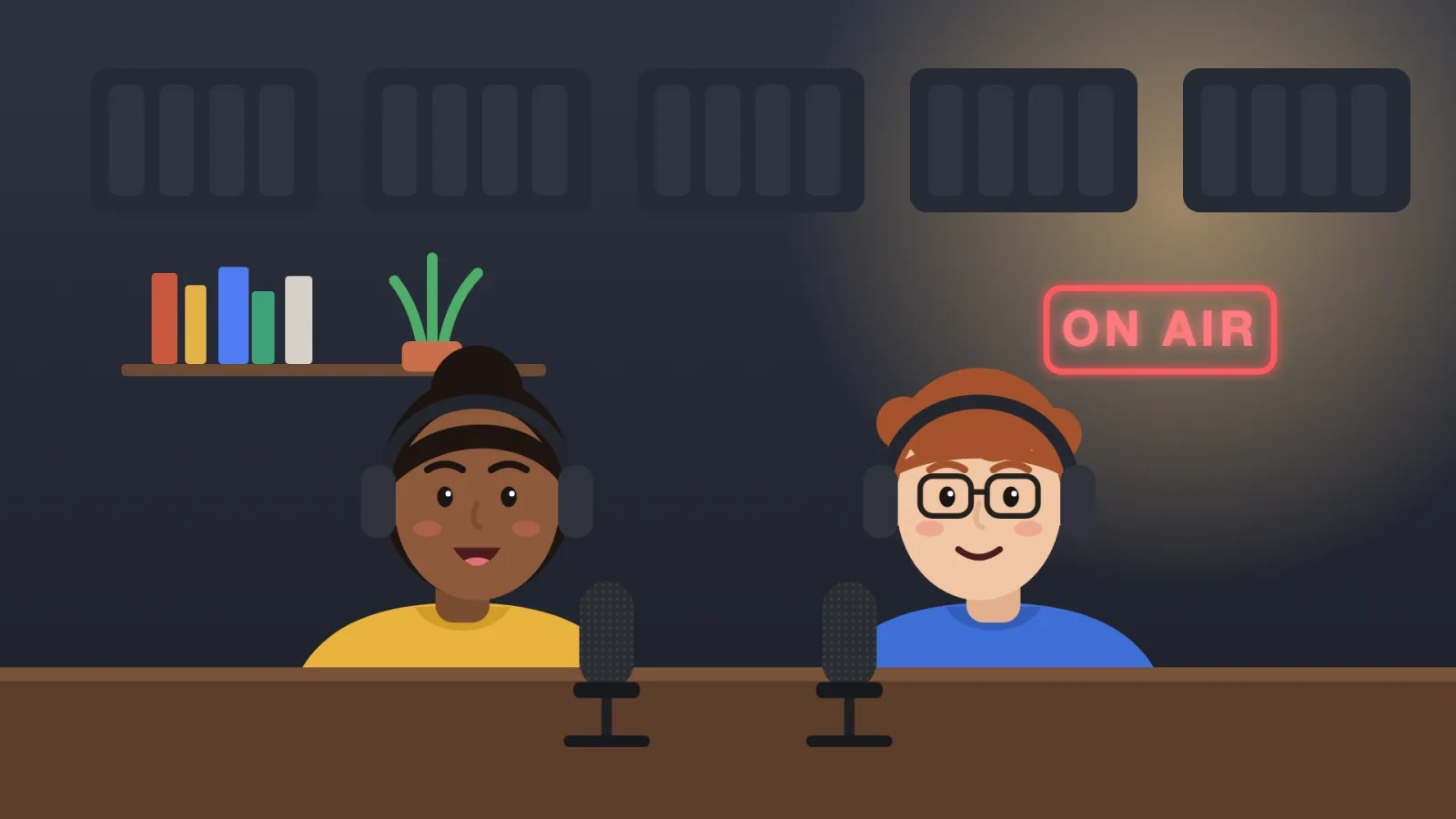
- The footage: one file per camera. One camera works too; more angles give you more to cut between.
- The sound: a recorder or a mic per person gives the cleanest result. Keep every camera mic on anyway, for syncing.
- An editor, or not: Final Cut Pro (Mac, one-time purchase), Premiere Pro (subscription) and DaVinci Resolve (has a free version) all handle multicam podcasts. If you do not edit at all, CastCut can make the finished MP4s itself.
The workflow, step by step
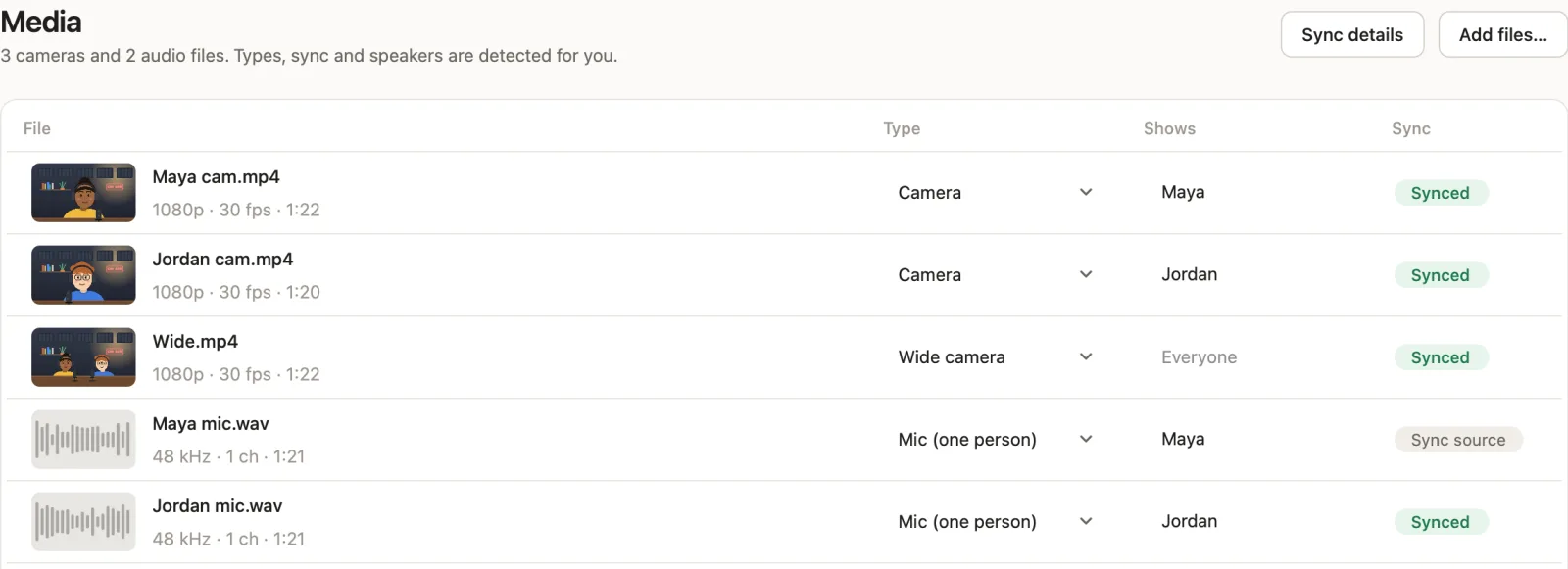
- Organize the files. Make one folder per episode with every camera file and the recorder or mic audio, straight off the cards. Name the cameras by who they show (Maya cam, Jordan cam, Wide) and back the folder up before you start.
- Sync cameras and audio. Line every file up by its sound, so no timecode or clapper is needed. Your editor's multicam or synchronize command does this when every camera recorded audio. See how to sync podcast cameras by audio.
- Pick and fix the sound. Use the recorder or a mic per person under every shot, not the camera mics. Even out the levels between people, take out hum or room noise if you need to, and keep the loudness steady across the episode.
- Cut between the cameras. Show whoever is talking, go to the wide shot when people talk over each other or laugh, and hold each shot for a couple of seconds. In a multicam clip you can switch angles as the episode plays. See how to edit a multicam podcast in Final Cut Pro.
- Tighten the conversation. Remove long pauses between answers, ums at the start of sentences, false starts and repeated takes. Keep the pauses that land a point. See how to remove silences and filler words.
- Finish it. Match the color between cameras, add name titles the first time each person speaks, and add captions. Many people watch with the sound off.
- Export the episode. Export the full episode in 16:9 for YouTube. For podcast apps, export the audio as well, or a video file if your host takes one.
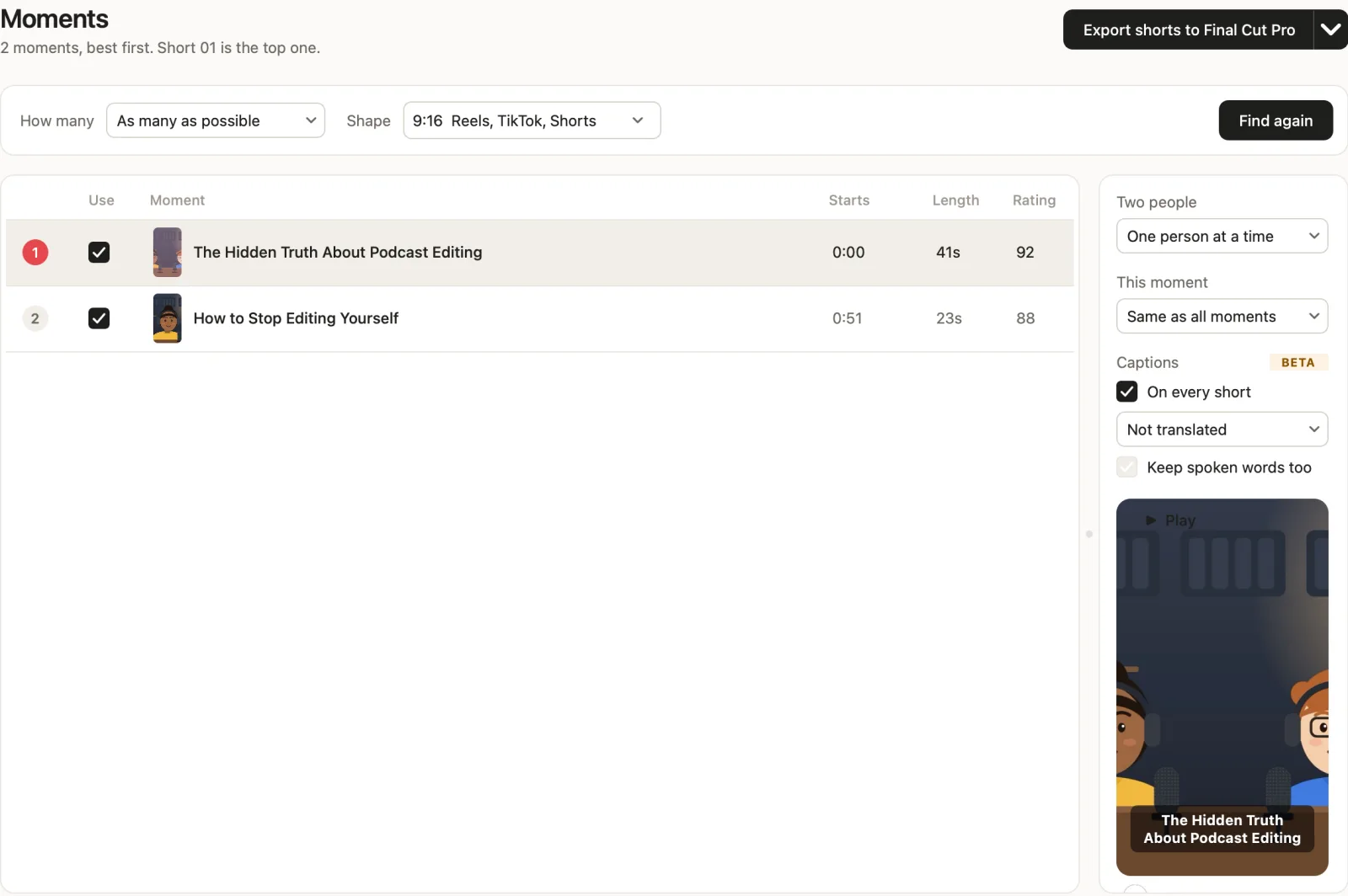
- Make the clips. Pick a few strong moments, reframe them to vertical 9:16 on the person talking, and add captions for Reels, TikTok and YouTube Shorts. See clips for every platform.
Where the time goes: syncing, switching cameras and removing pauses all mean watching the episode, often more than once. For a one-hour conversation on two or three cameras, that alone can take hours before you get to titles, captions and clips.
Tips that make a podcast feel edited, not just cut
- Cut on the start of a sentence, not mid-word. Viewers follow the voice, then the face.
- Use the wide shot on purpose: for laughs, crosstalk and quick back-and-forth.
- Do not cut every pause. Tight is good; breathless is not.
- Open with the best moment of the episode as a short cold open, then the intro.
- Same look every episode: the same titles, caption style and loudness make a show feel like a show.
The faster way: let CastCut do steps 2, 4 and 5
CastCut is a Mac app that makes the edit before your editing app opens. Your time goes to the moments, the titles and the clips.
- Add the files. Drop the camera files and any recorder or mic audio into CastCut. It sorts them and syncs them by sound.
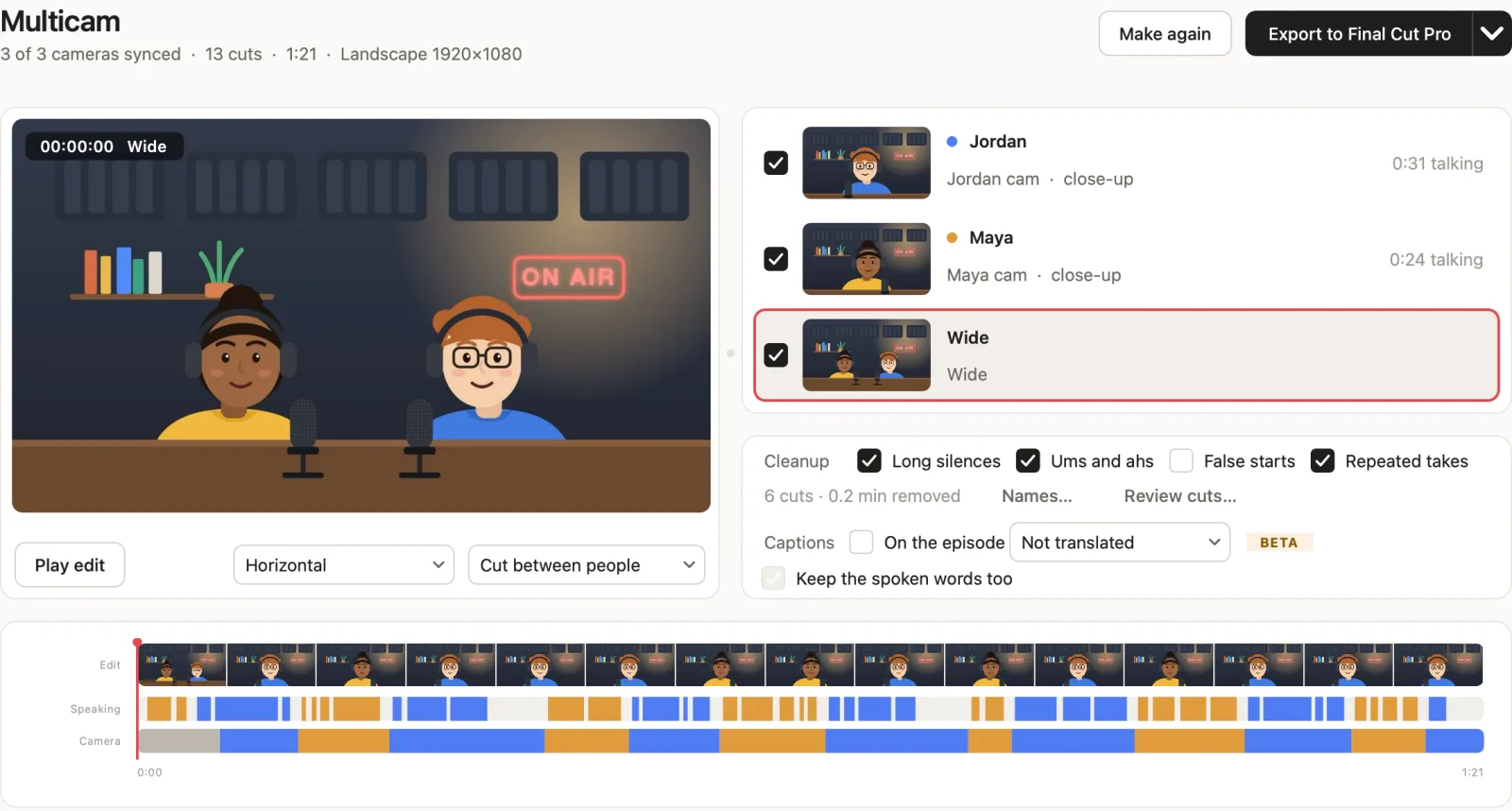
- Make the multicam edit. One press. CastCut cuts to whoever is talking, goes wide for crosstalk, and lists every cut with the reason.
- Choose the cleanup. Long silences, ums and ahs, false starts and repeated takes. Untick anything you want to keep.
- Export. A normal timeline for Final Cut Pro, Premiere Pro or DaVinci Resolve, or the finished episode and captioned reels as MP4 files with no editing app.
Editing in a specific app? See Final Cut Pro, Premiere Pro or DaVinci Resolve. Filmed on phones? See iPhone podcasts. Comparing tools? See the comparison page.
Questions
How long does it take to edit a video podcast?
By hand, a one-hour episode on two or three cameras often takes several hours, because syncing, switching cameras and removing pauses all mean watching the episode, often more than once. Software like CastCut does those steps in minutes on a Mac, so your time goes to titles, captions and clips.
What software do I need to edit a video podcast?
Any editor with multicam: Final Cut Pro, Premiere Pro or DaVinci Resolve, which has a free version. CastCut syncs the cameras, cuts to the speaker and removes silences before any of them opens, or exports the finished MP4 without one.
How do I edit a podcast with multiple cameras?
Sync the cameras by sound, put the best audio under every angle, then switch to whoever is talking and go wide for crosstalk. In Final Cut Pro, Premiere Pro or Resolve that means a multicam clip and switching as you play; CastCut makes those cuts automatically.
Should I edit the audio and the video separately?
Edit them together. Every cut in a video podcast has to cut the sound and all the cameras at once, or the sync breaks. Clean up noise and levels on the audio first, then cut.
How much does it cost to have a video podcast edited?
A freelance editor commonly charges about $100 to $500 per episode, depending on length, cameras and extras like clips. CastCut costs $14 a month or $99 a year for unlimited episodes, and the first 2 exports are free.
Can I edit a video podcast without editing software?
Yes. CastCut exports the finished episode, in landscape, vertical or both, and captioned reels as MP4 files on your Mac, with no Final Cut Pro, Premiere Pro or Resolve needed.
Try it on your next episode
Your first 2 exports are free. No account or card. Apple silicon Macs, macOS 14 or later.